
2.3.2 Manual update file search
If the Update button is not available or does not work for some reason, you can update the program by downloading the latest update file yourself.
Go to the PAR system's Resources website by pressing the Info button at the top of the PAR system's front page or go to https://par-jarjestelma.fi/resurssit with an internet browser. After that, go to the folder 02. Downloads, download the AsiakkaanMalli.xlsm file and save it in the Interface folder of your Par program.
The program tries to automatically retrieve the latest statistical bases every time a PARkki report is created, so it is not necessary to download the statistical files ET Tilastot Parkki.xlsx and TY Tilastot Parkki.xlsx.
Starting the update
Start the update by opening the new Customer Template file in the User Interface folder in the same way as any other Excel file. When the Customer Template file is open, it should read "Welcome to use the PAR system" in the middle of the screen.
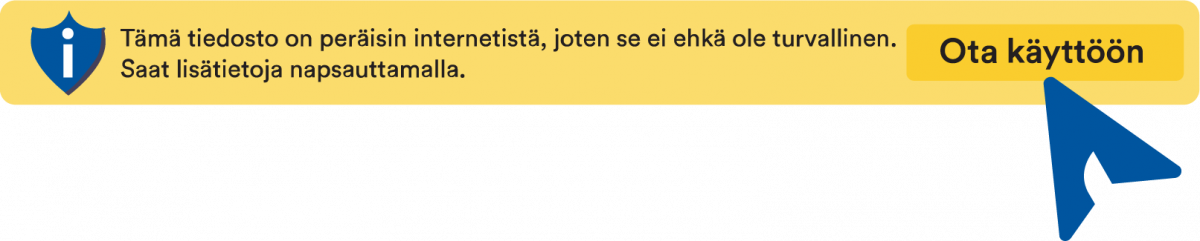
At the top of the Excel window, there is a mention of a protected view and/or a Security Warning. By default, especially files downloaded from the internet/email are opened to a state where they cannot execute potentially malicious code. In this case, you have to tell Excel that the file is safe by clicking the "Enable editing" and "Enable content" buttons.
If everything goes as planned, a "Welcome" message should appear soon. If you don't hear the message and neither Security notice appears at the top of the Excel window, close the Customer Template and open it again.